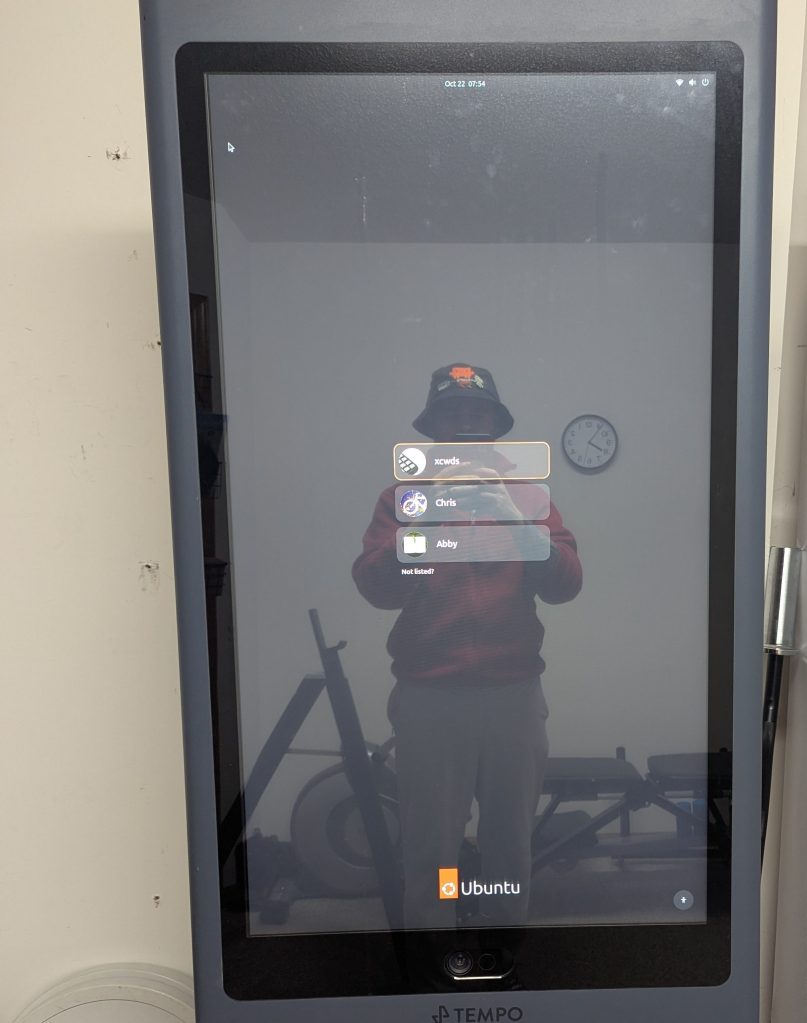
In late 2020, I bought a Tempo Studio: a touchscreen device designed for live and on-demand workout classes that included a barbell, two dumbbell handles, and 75lbs of weighted plates. While I still use the workout equipment, I canceled my subscription for the workout classes a few years ago. The studio has mostly been collecting dust inside my workout room until last week when I decided to install Ubuntu on the unit and have my own touchscreen computer.
The Hardware
There’s nothing special about the hardware in the Tempo Studio. After all, it’s powered by a Linux OS running specialized software that connects to the Tempo servers. The exposed USB port on the back means that with a USB splitter, you can connect a bootable USB and keyboard without needing to expose the motherboard. Unfortunately, I did not realize this until after I had installed Ubuntu, but that gave me a closer look at the hardware.
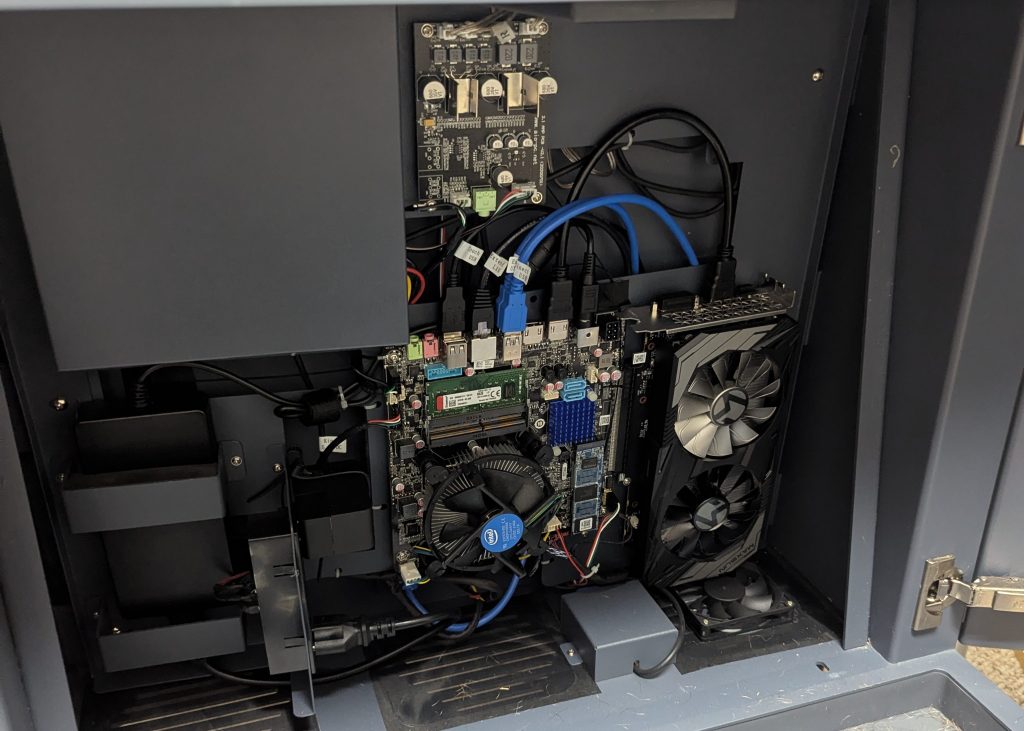
Hidden behind the built-in storage rack for weight plates was the motherboard, a GPU, and wires to connect all the peripherals like the camera, touchscreen, and speakers. A single open USB drive gave me the keyboard access I needed to install Ubuntu.
Troubleshooting
One thing to know about the Tempo’s screen is that it is in a portrait orientation. The fix for that is pretty simple: adjust the display rotation in the settings panel. Unfortunately, fixing the screen rotation caused the touchscreen to behave strangely. Tapping on the screen still had an effect, but the actions did not line up with the screen. Installing and running evtest.
sudo apt install evtest && sudo evtest
Running evtest identified two issues: the coordinates the taps were registering to were off by 90° and the touch screen had two input devices registered. The coordinate issue was relatively easy to fix by applying a calibration matrix to the touch events. The screen’s second input device was an emulated mouse, which GNOME doesn’t rotate to match the display. The solution was to ignore the emulated mouse events and listen only to touch events. After some trial and error, I found the two rules I needed to add to get the touchscreen working.
sudo tee /etc/udev/rules.d/99-tempo-touch.rules <<'EOF'KERNEL=="event*", ATTRS{name}=="ILITEK Multi-Touch-V5000 Mouse", ENV{LIBINPUT_IGNORE_DEVICE}="1"KERNEL=="event*", ATTRS{name}=="ILITEK Multi-Touch-V5000", ENV{LIBINPUT_CALIBRATION_MATRIX}="0 -1 1 1 0 0"EOFsudo udevadm control --reloadsudo udevadm trigger --subsystem-match=input --action=change
All that was left was to make sure the login screen was rotated too.
# For versions of GNOME where the login screen runs as the gdm usersudo cp ~/.config/monitors.xml /var/lib/gdm3/.config/monitors.xmlsudo chown gdm:gdm /var/lib/gdm3/.config/monitors.xml# If the login screen doesn't run as the gdm user, copy to the system-wide configsudo cp ~/.config/monitors.xml /etc/xdg/monitors.xmlsudo chmod 644 /etc/xdg/monitors.xml
No Password Login
For a final bit of convenience, I updated the non-admin user accounts for my wife and me to login without a password. This was accomplished by:
- creating a user group named
nopasswdlogin - adding the non-admin user accounts to that group
- setting the first auth line in
/etc/pam.d/gdm-passwordtoauth sufficient pam_succeed_if.so user ingroup nopasswdlogin
What’s Next?
The Tempo is staying in my workout room, and I’ll use my weightlifting calculator to keep track of my workouts.

